
Sync Setup - Pro Tools® on the same computer via MTC, MMC & HUI
About DAW Sync
To play video in sync with Pro Tools®, ADR Master needs a way to follow the Pro Tools® transport - knowing when it plays, stops, and where the playhead is located at any moment. This connection between ADR Master and Pro Tools® is called DAW sync.
ADR Master is optimised to work with Pro Tools® and offers features unique to Pro Tools®, such as dedicated Pro Tools record control functions (Studio only). For this reason, the DAW sync guides in this manual only cover Pro Tools® configurations. ADR Master can also sync with other DAWs via MTC/MMC - for setup guides covering other DAWs, refer to the Video Sync 6 manual, available in the knowledge base at https://non-lethal-applications.com/knowledge-base
Note: When following Video Sync guides for use with ADR Master, be aware that certain references such as virtual MIDI port names will differ. For ADR Master-specific MIDI port information, refer to the MTC/MMC chapters in this manual.
About This Configuration
This chapter covers syncing ADR Master with Pro Tools® running on the same computer, using MIDI Timecode (MTC), MIDI Machine Control (MMC), and HUI.
Satellite Link (covered in the previous chapter) is generally the preferred sync method as it provides tighter integration with Pro Tools® and a simpler setup process. However, MTC/MMC sync is also very reliable and may be preferred when Satellite Link is not available, such as with Pro Tools® versions that do not support it.
This configuration works with any version of Pro Tools® and supports full DAW Control functionality since both applications run on the same computer.
Understanding MTC, MMC and HUI
This chapter covers setting up three MIDI-based protocols that work together to provide synchronised playback:
MTC (MIDI Timecode) transmits a continuous stream of timecode on a dedicated MIDI port during playback, allowing ADR Master to track the current position and play at the correct speed.
MMC (MIDI Machine Control) sends transport commands and locate messages on a separate dedicated MIDI port. When navigating to a specific timecode position in Pro Tools® (such as clicking in the timeline or using memory locations), MMC sends locate commands to update ADR Master's position without requiring playback.
HUI is a control surface protocol that provides two-way communication between Pro Tools® and ADR Master. Pro Tools® does not communicate loop status via MTC or MMC, so HUI is required for workflows that need loop playback support. HUI setup is covered later in this chapter.
Setup
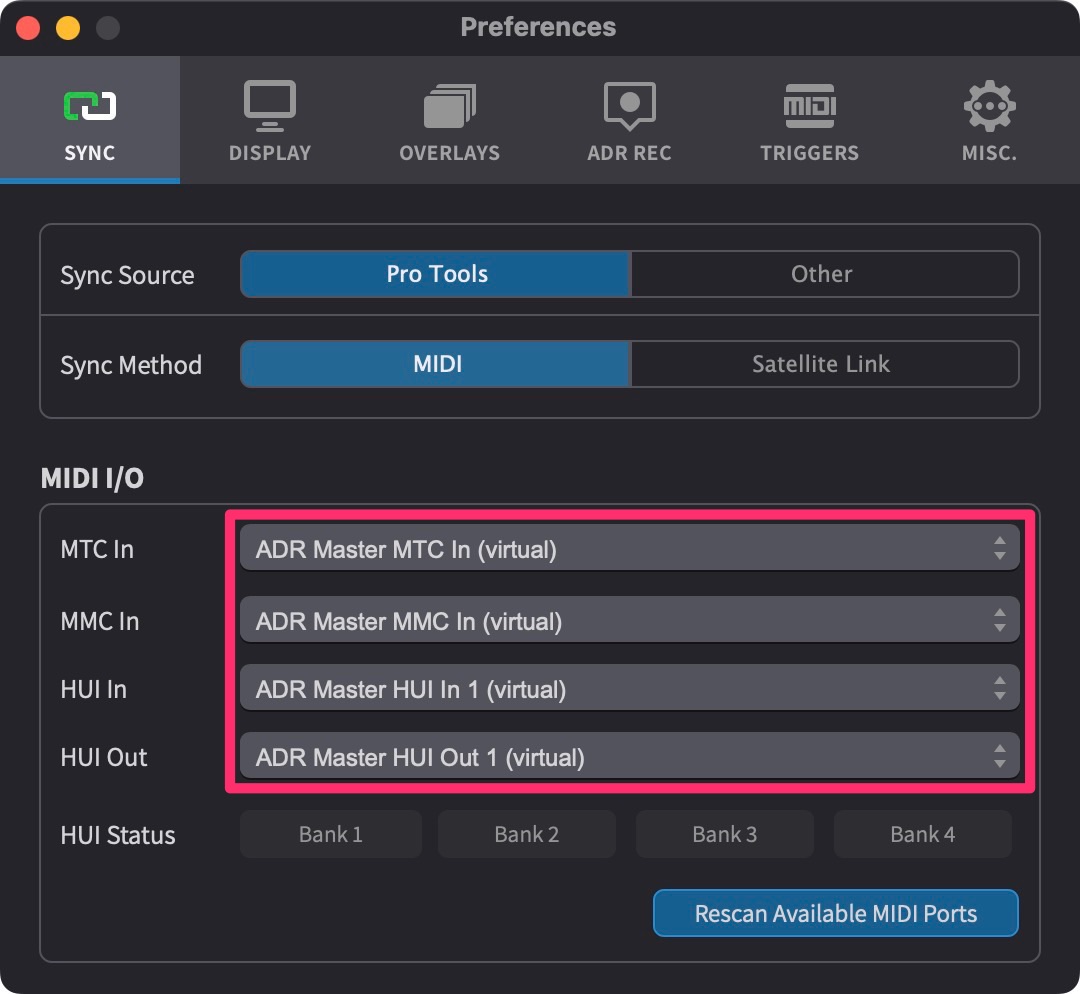
ADR Master features virtual MIDI ports, which mostly removes the need to create network MIDI sessions in Audio MIDI Setup in order to connect to Pro Tools® on the same computer. When ADR Master is launched, it will create virtual MIDI ports named ADR Master MTC In, ADR Master MMC In & ADR Master Trigger In - and four HUI input and output ports named ADR Master HUI In/Out 1 to 4 - which will automatically be pre-selected in ADR Master, & visible in Pro Tools®.
 {width=70%}
For this reason, it is advised to always launch ADR Master before launching Pro Tools®. Failure to do so, may cause some of these settings (mostly HUI) - to be reset to default - such that they need to be re-configured in Pro Tools® again.
Note: If Pro Tools® does not reconnect to the virtual ports automatically when ADR Master is opened after Pro Tools®, it may be better to consider setting up ports via Audio MIDI Setup on the same computer.
ADR Master MTC / MMC Setup
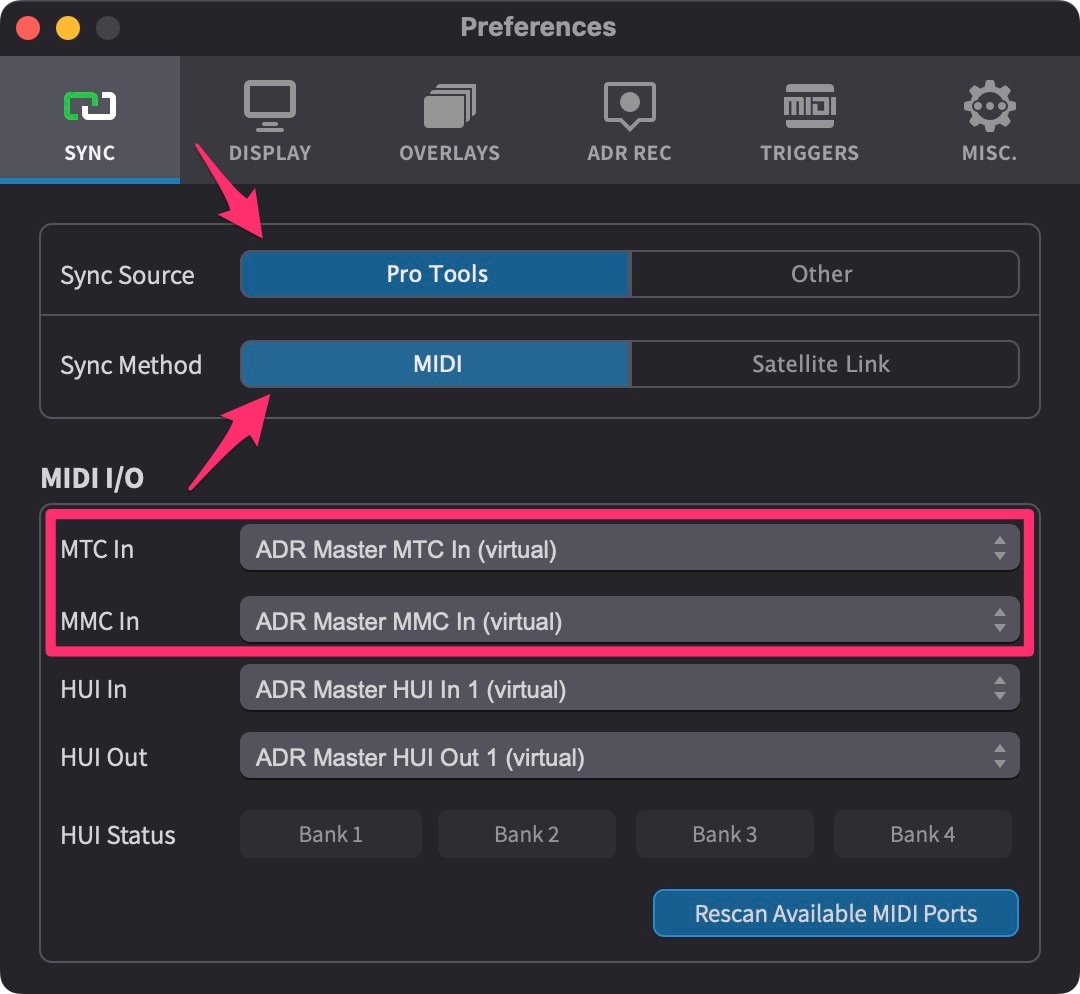
To show the MIDI I/O options in ADR Master, first navigate to the SYNC tab of the Preferences / Settings window.
Set the Sync Source field to Pro Tools.
Set the Sync Method field to MIDI.
Next, make sure that the MTC ports are set to their default values ADR Master MTC In (virtual) & ADR Master MMC In (virtual) as per the image below:
 {width=70%}
Pro Tools® MTC (MIDI Timecode) Setup
First, ensure Pro Tools® is set to Timecode ruler mode rather than Bars|Beats ruler mode. This can be changed by clicking on the arrow to the right of the timecode value in the grid setting in the Pro Tools® UI.
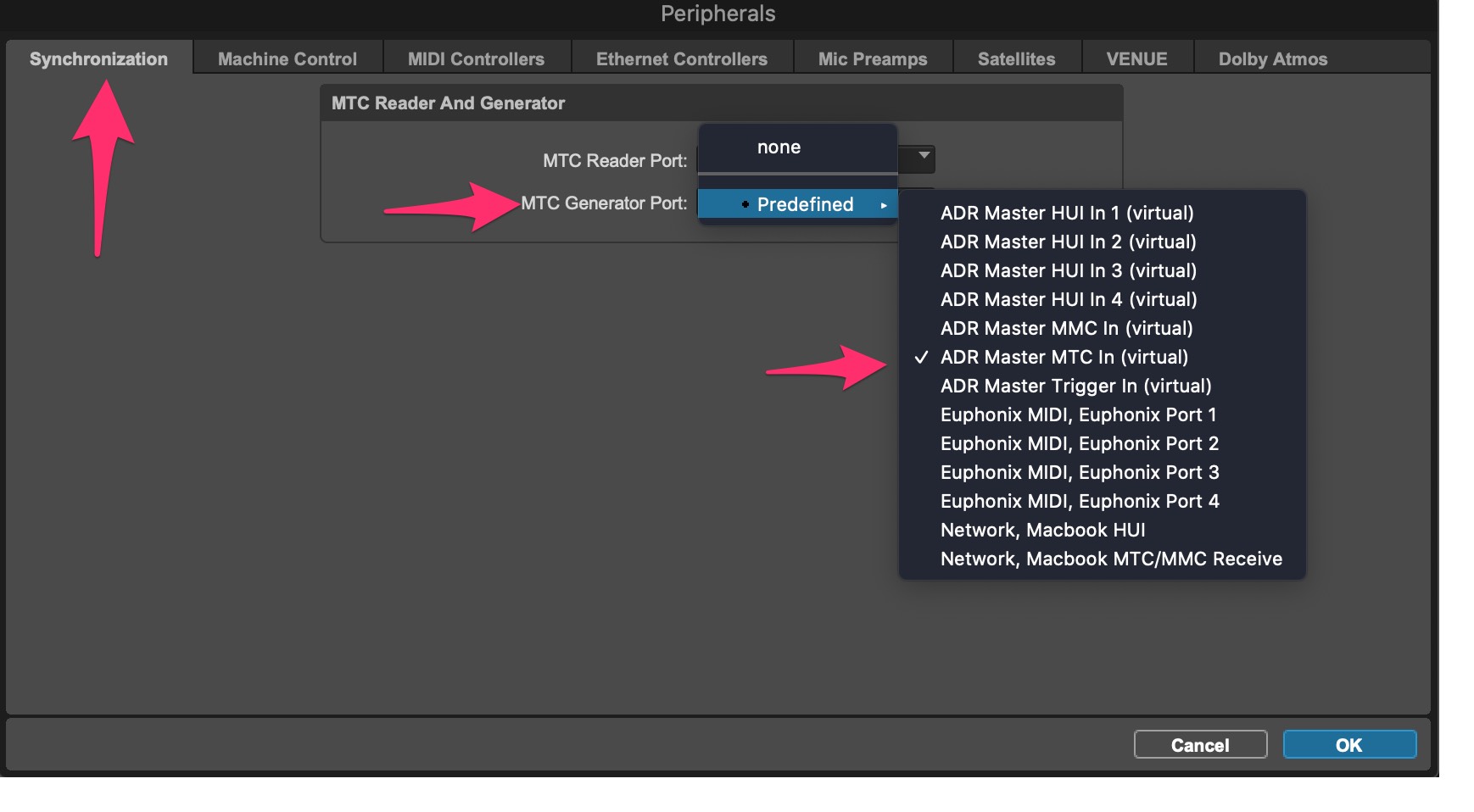
Next, go to Setup → Peripherals → Synchronization tab.
In the MTC Generator Port dropdown menu, choose ADR Master MTC In (virtual).
Click OK to close the window.
 {width=80%}
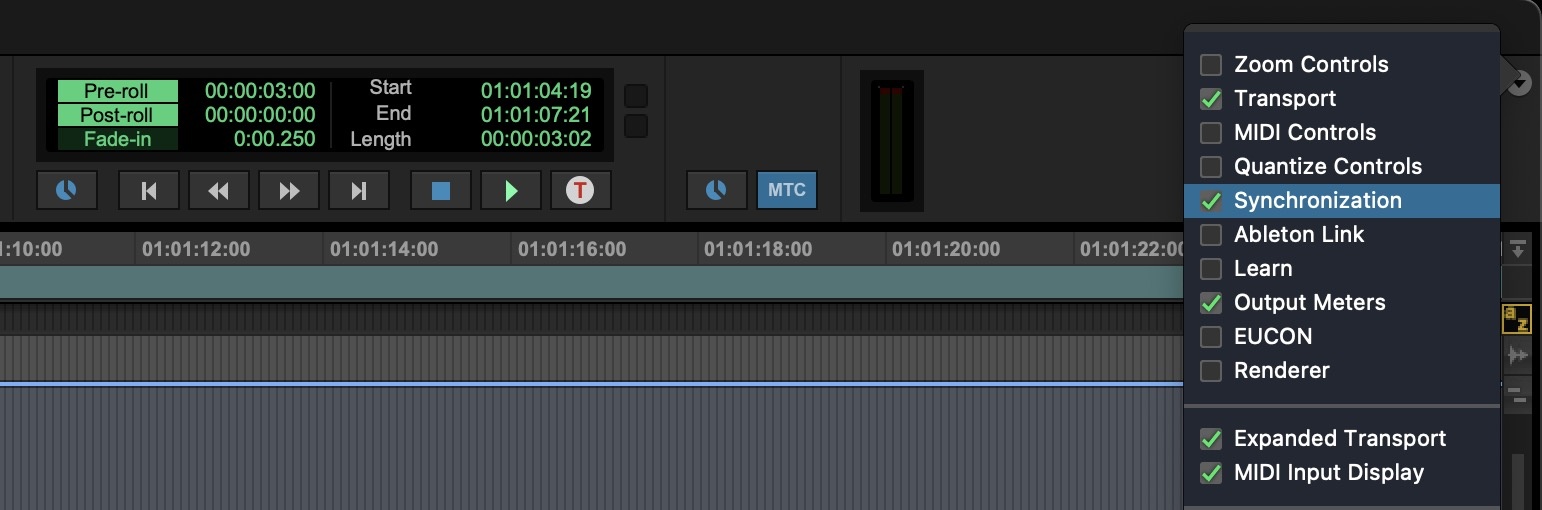
To show the Synchronization controls in the Edit window, click the arrow at the top right of the Edit window toolbar and enable Synchronization in the dropdown menu. Click the MTC button in the Synchronization controls area to enable MTC generation.
 {width=50%}
Alternatively, the Synchronization controls can be enabled in the Transport window - click the arrow at the top right of the Transport window and enable Synchronization. Click the MTC button in the Synchronization controls area to enable MTC generation.
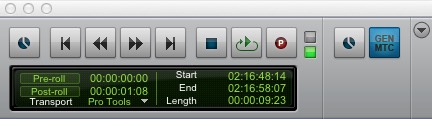 {width=50%}
Pro Tools® MMC (MIDI Machine Control) Setup
To enable MMC in Pro Tools®, select the Setup → Peripherals → Machine Control tab.
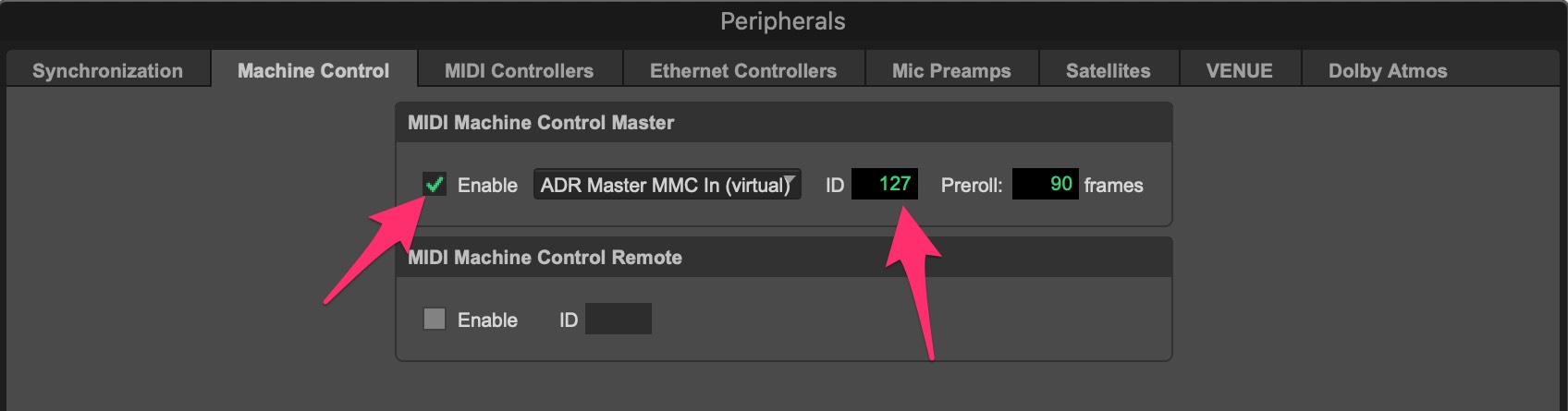 {width=70%}
In the Machine Control Master field, click the Enable checkbox.
Check that the ID field is set to 127.
Select ADR Master 's default virtual MIDI input, ADR Master MMC In (Virtual).
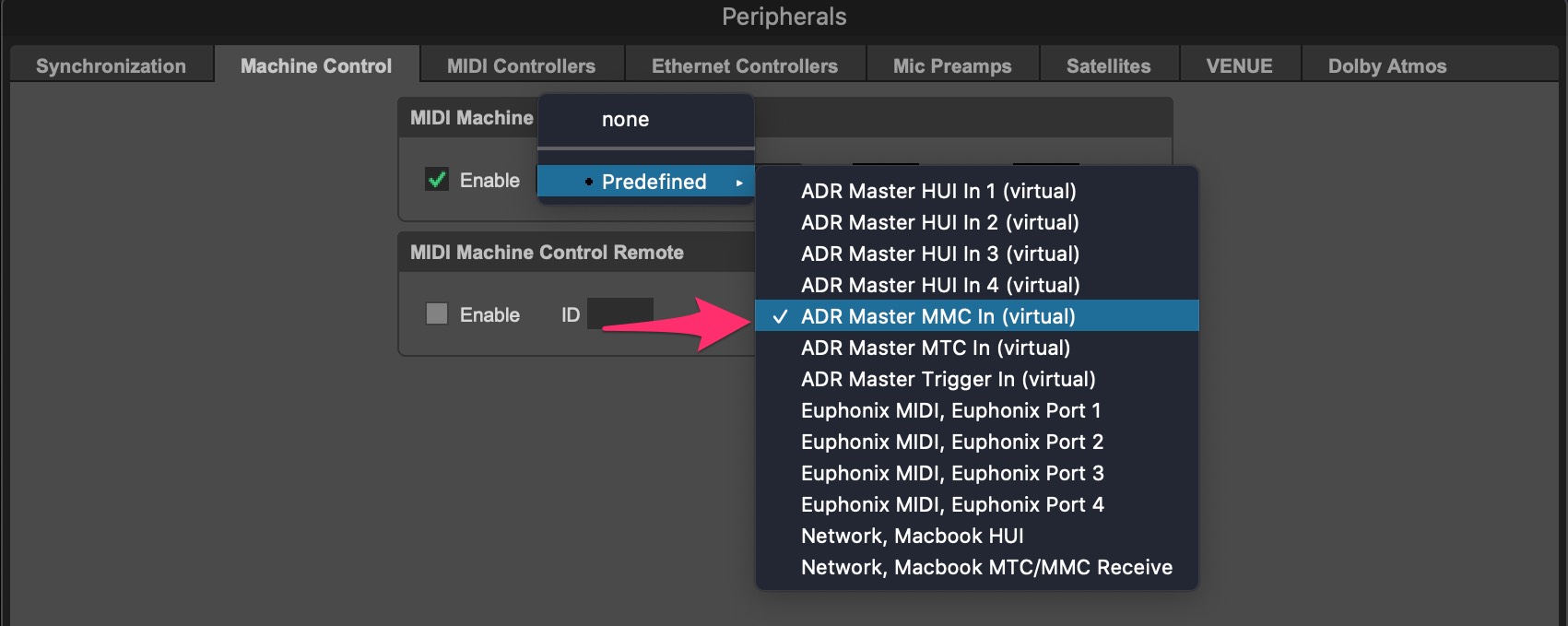 {width=70%}
Now go to Setup → Preferences / Settings → Synchronization tab.
Make sure that Machine Chases Memory Location and Machine Follows Edit Insertion/Scrub are both enabled:
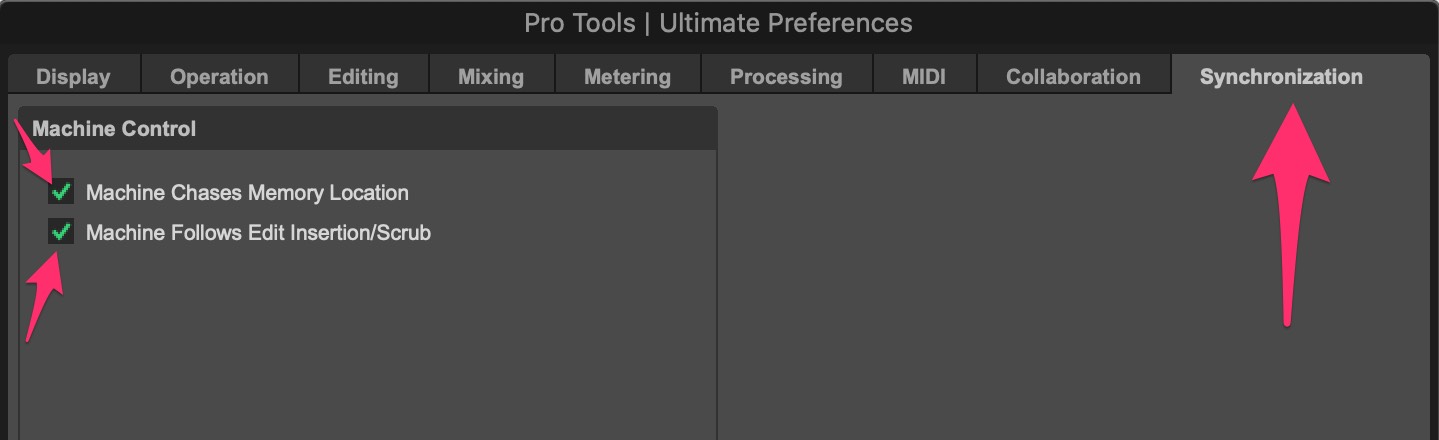 {width=70%}
When Machine Chases Memory Location is enabled, Pro Tools® will send a MMC Locate command whenever you navigate to a specific memory location. With the Machine Follows Edit Insertion/Scrub checkbox checked, Pro Tools® will send MMC Locate commands every time the position of the edit insertion is changed.
ADR Master HUI Setup
If looped playback is required with MTC & MMC sync options, ADR Master must be enabled as a HUI controller in Pro Tools.
Note: If looped playback is not required, for best performance it is suggested to leave HUI off - in which case this step can be skipped until the Enabling Synchronised playback section of this chapter.
In the SYNC tab in the Preferences / Settings window in ADR Master, check that the HUI In & HUI Out virtual ports are set to the default values ADR Master HUI In 1 (virtual) & ADR Master HUI Out 1 (virtual) respectively.
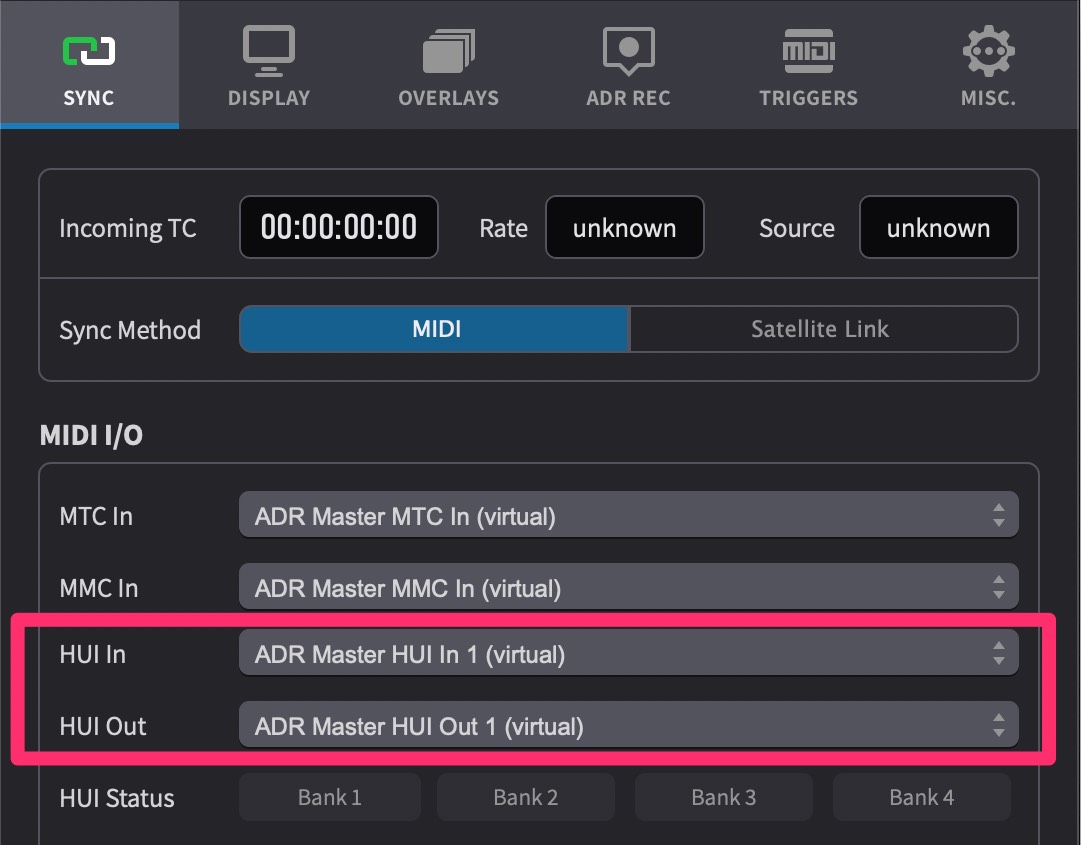 {width=70%}
Pro Tools HUI Setup
New MIDI Inputs are disabled by Pro Tools® by default until they are manually activated.
To enable the HUI ports, launch Pro Tools®, go to Setup → MIDI → MIDI Input Devices and make sure that the four ADR Master HUI Out 1-4 (virtual) MIDI Inputs are enabled.
Note: Although only one HUI port is required for loop playback, it may be beneficial to enable all four in case additional HUI ports are required for DAW Control.
Next go to Setup → Peripherals → MIDI Controllers tab.
In the first row, under the Type column, select HUI.
In the adjacent Receive From column, select Predefined → ADR Master HUI Out 1 (virtual).
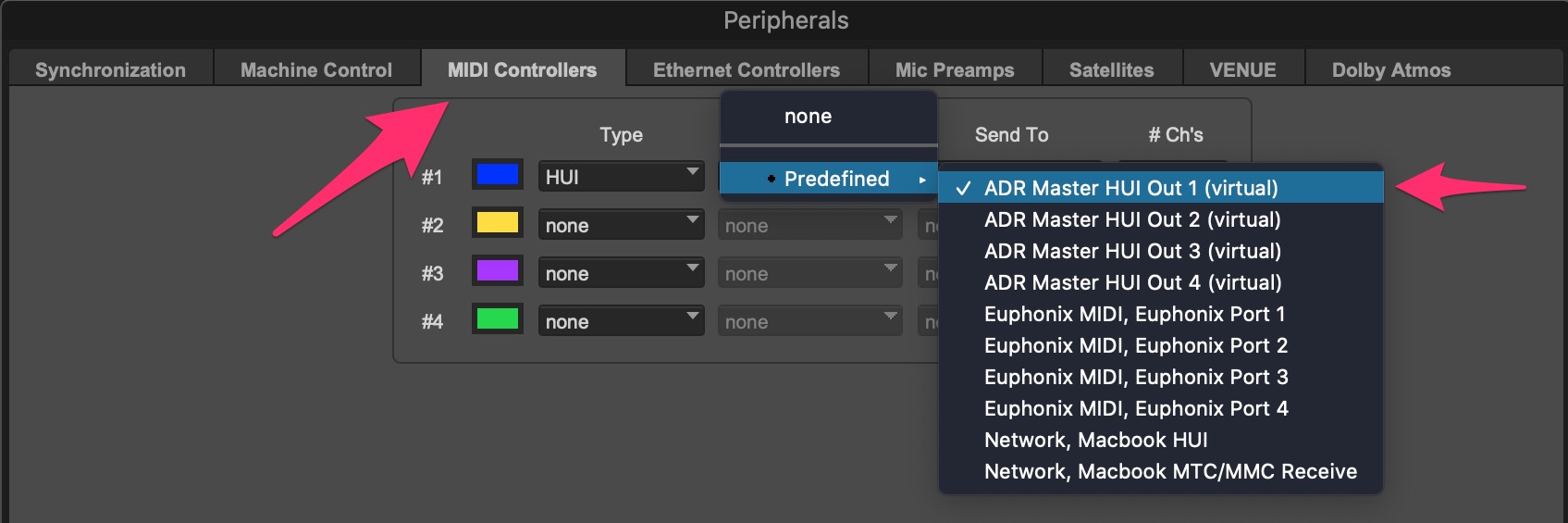 {width=70%}
In the adjacent Send To column, select Predefined → ADR Master HUI Out 1 (virtual).
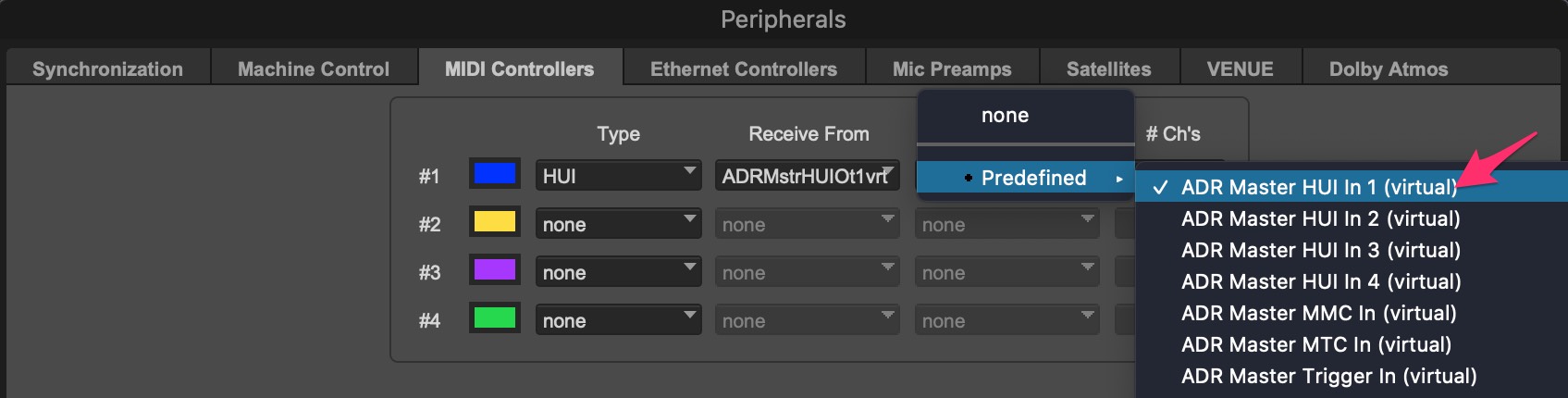 {width=70%}
Click OK once done.
Note: Although ADR Master can follow looped playback in Pro Tools®, it is possible that playback can drift out of sync slightly after a few iterations of the loop when using HUI.
Matching Frame Rates
For MTC sync to work correctly, the Pro Tools® session frame rate must match the timeline frame rate in ADR Master.
In the TIMELINES tab, locate the active timeline and check its frame rate in the summary section. If video is present on the timeline, the frame rate is derived from the video file. If no video is present, the frame rate can be set manually by clicking the pencil icon next to the timeline name and selecting the required frame rate from the TC Frame Rate menu.
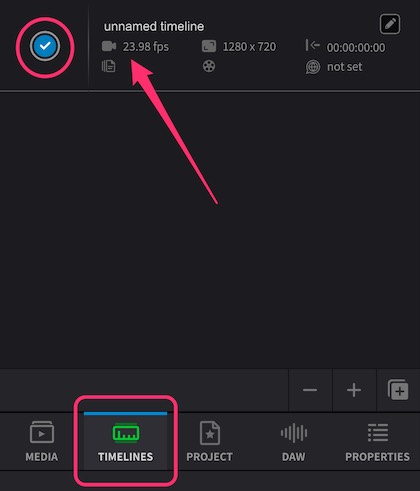 {width=50%}
In Pro Tools®, go to Setup → Session and set the Timecode Rate field to match the ADR Master timeline frame rate.
Enabling Synchronised playback
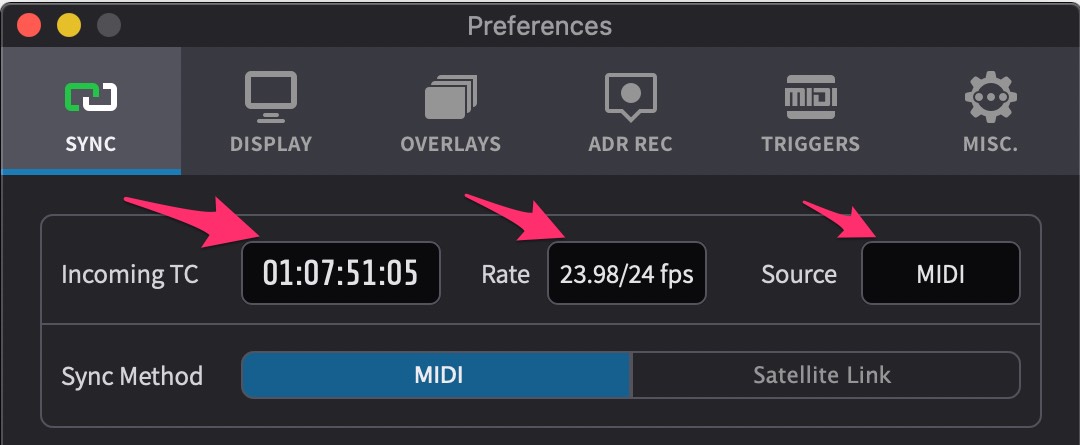
When hitting play or scrubbing within Pro Tools®, the incoming timecode field should now be seen incrementing, and the timecode rate displayed within the Incoming TC section to the left of the main timecode counter in ADR Master.
 {width=70%}
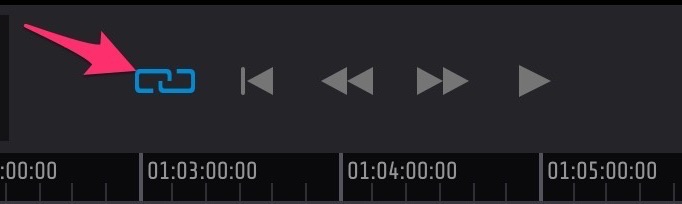
Click the Sync button to the left of the transport buttons to follow external sync - so that it turns blue.
 {width=30%}
ADR Master MTC/MMC sync is now online & ready to go. Hit play in Pro Tools® and ADR Master will play back in sync.
High Frame Rate Content
ADR Master supports timelines running at up to 60 frames per second. However, MTC was designed around SMPTE broadcast standards and only supports frame rates up to 30fps (24, 25, 29.97, and 30). The specification has never been updated to include higher frame rates.
To sync high frame rate timelines via MTC, go to Setup → Session in Pro Tools® and set the Timecode Rate field to half the timeline frame rate. For example:
- 48fps timeline → set Pro Tools® to 24fps
- 50fps timeline → set Pro Tools® to 25fps
- 60fps timeline → set Pro Tools® to 30fps
ADR Master will automatically match the incoming timecode at half its frame rate.
Troubleshooting
If incoming timecode is not showing in ADR Master:
- Check that MTC generation is enabled in Pro Tools® (MTC button active in Synchronization controls)
- Check that the correct MTC port (ADR Master MTC In (virtual)) is selected in Pro Tools® Synchronization preferences
- Ensure ADR Master was launched before Pro Tools® so the virtual ports are available
- Check that the MTC and MMC ports are not swapped - MTC is configured in Setup → Peripherals → Synchronization tab, MMC in the Machine Control tab
If incoming timecode is showing but playback is not syncing:
- Ensure the Sync button is enabled (blue) in ADR Master
- Check that frame rates match (see Matching Frame Rates above)
- Check that timecode ranges match - if Pro Tools® starts at 01:00:00:00 but the timeline starts at 10:00:00:00, playback will not begin until Pro Tools® reaches 10:00:00:00
If ADR Master's position only updates during playback but not when navigating in Pro Tools®:
- This indicates an issue with MMC (MIDI Machine Control) setup
- Check that the correct MMC port (ADR Master MMC In (virtual)) is selected in Pro Tools® Machine Control settings
- Ensure Machine Chases Memory Location and Machine Follows Edit Insertion/Scrub are enabled in Pro Tools® Synchronization preferences
If playback is jumpy or frames are being skipped:
- This is often caused by mismatched frame rates between Pro Tools® and ADR Master - ensure both are set to the same frame rate (see Matching Frame Rates above)
- Try increasing the TC Freewheel value in Preferences → MISC. This defines a number of freewheel frames to keep playback running through unexpected timecode values. Note that higher values will make ADR Master less responsive to external timecode changes.
If the ADR Master HUI ports are not showing in Pro Tools®:
- Ensure the MIDI input devices have been enabled - go to Setup → MIDI → MIDI Input Enable and check that the ADR Master HUI ports are enabled
If Pro Tools® loops but ADR Master continues playing:
- Loop playback requires HUI to be configured - check that the HUI ports are correctly selected in both ADR Master and Pro Tools® MIDI Controllers settings
- Ensure that one of the HUI Status banks shows activity (lit up) in ADR Master's SYNC preferences, indicating Pro Tools® is communicating
- If a HUI port is already in use for DAW Control, try selecting a different HUI port (e.g., HUI port 2 instead of HUI port 1)
If synchronised playback still does not work after following these steps, please contact support@non-lethal-applications.com.